What is EdBoard?
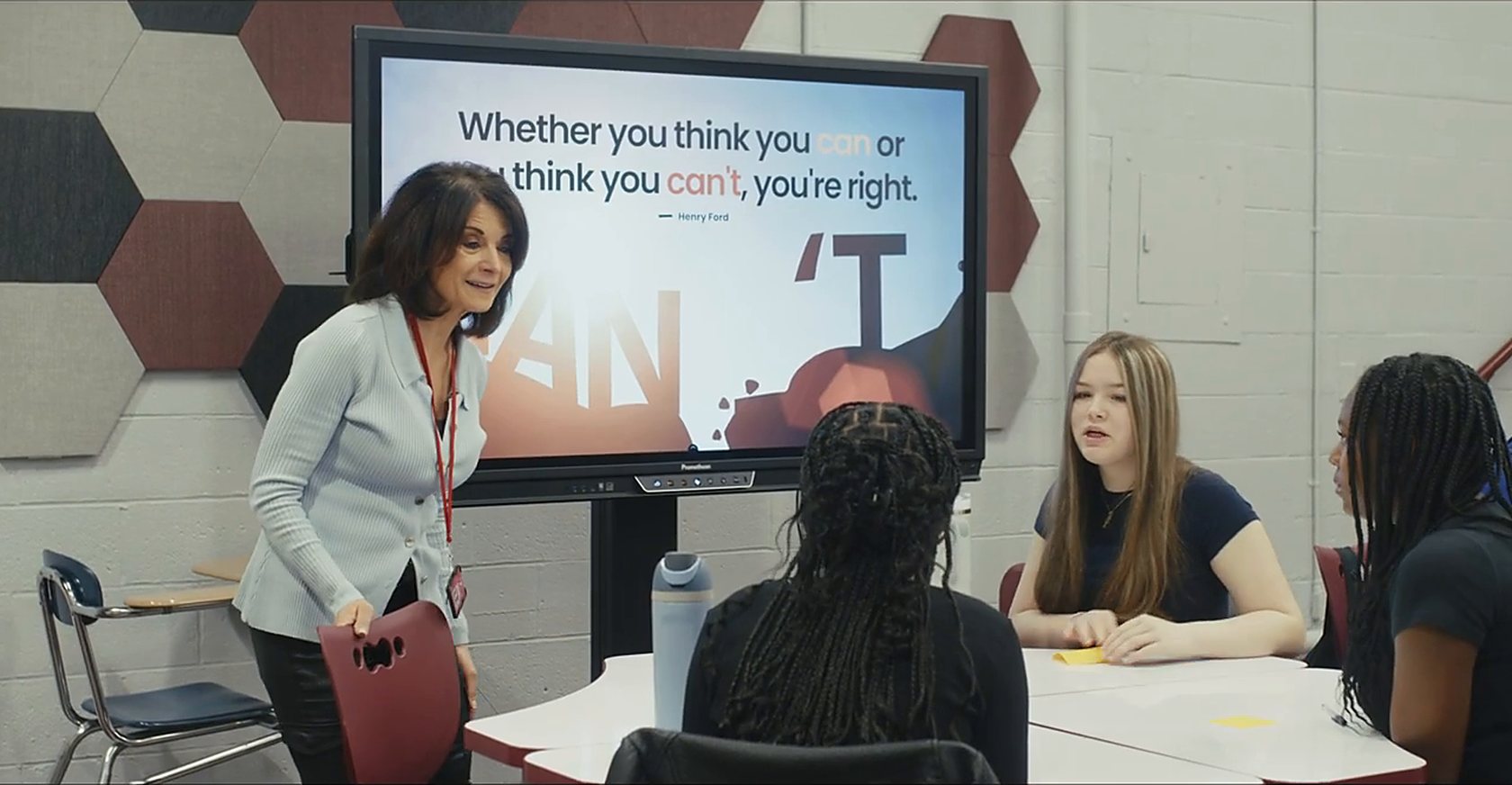
EdBoard is a free digital classroom board that turns your projector or smart board into your classroom command center: schedule, timers, name picker, polls, a noise meter and graphic organizers, all on one screen.
What EdBoard does
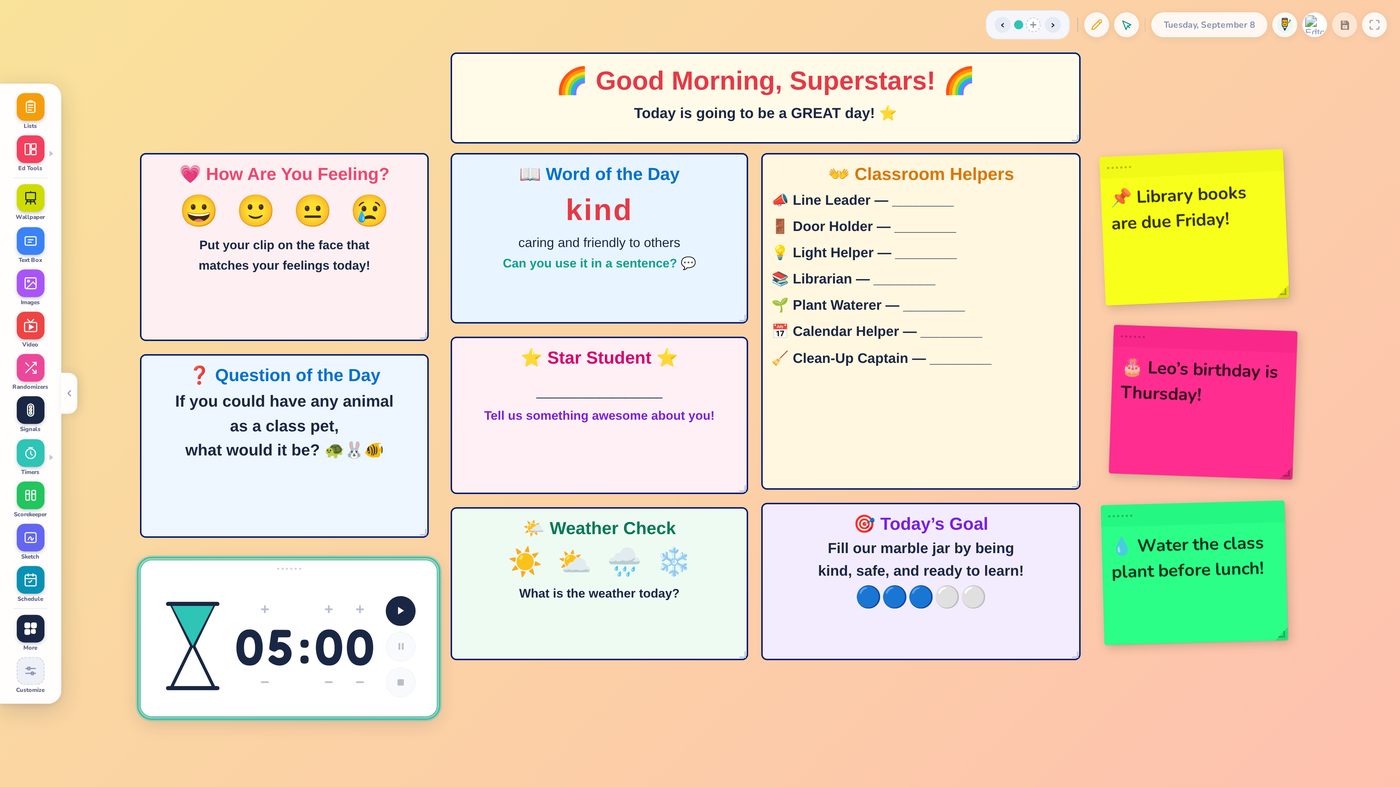
EdBoard is the screen your class sees all day. Instead of juggling a timer tab, a name wheel on one site, a seating chart in a spreadsheet, and your schedule on a slide, you put them all on one board and project it.
Everything on the board is a widget you add from the Class Tools menu, then drag where you want it. Morning message, schedule, feelings check-in, word of the day, classroom helpers, timers, sticky notes, polls, quick games. Your layout is yours, and it can look like your room, not like software.
Your board comes back exactly as you left it. Close the tab at 3:05, open it at 7:40 the next morning, and everything is right where it was. Set it up once, then teach.
Made by the First Five people
EdBoard is built by Edtomorrow, the team behind The First Five daily routine used by 150,000+ educators.
If your morning starts with The First Five, Plus members can pin today’s edition right onto the board.
Every widget is a sticky note away
Add what your room needs, skip what it doesn’t. A few favorites from the Class Tools menu:
Schedule
Today’s plan on the wall. Nobody asks “what are we doing next?”
Timers & stopwatch
Transitions, centers, cleanup countdowns. Big enough to read from the back row.
Name Picker
Add your roster once and call on students fairly all year.
Seating charts (Plus)
Build the chart, drag students around, keep versions for subs.
Sticky notes
Reminders, shout-outs, “library books due Friday.” Exactly like the real thing.
Polls
Quick class votes on the board, or live on student devices through edtgo.com.
Drawing & text
Mark up anything. Annotate over a PDF or a map.
Classroom games (Plus)
A shelf of quick games for brain breaks and early finishers.
PDFs, images & slides
Drop your morning work page right on the board. Plus imports Google Slides, Canva or PowerPoint decks as full boards.
Plus dozens more: calendar, clock, voice levels, a Sound Meter, KWL charts, Venn diagrams, and a growing shelf.
Set up tonight, teach with it tomorrow
The whole setup is one sitting on the computer that drives your projector. Tomorrow morning is the payoff.
TONIGHTTen quiet minutes
-
Go to edtomorrow.com/edboard in Chrome or Edge on your classroom computer. No login needed.
-
Open Class Tools and add a Schedule, a Timer, and the Name Picker. Drag them where you want. Pick a backdrop.
-
Type tomorrow’s schedule and leave a sticky note with your morning message.
-
Add your roster once under Group Lists, and Use a list appears in the Name Picker.
TOMORROWProject and teach
-
Open the same page. Everything is exactly where you left it.
-
Project it as students walk in: message up, schedule up, timer ready.
-
Run your morning from one screen, and stop juggling tabs.
Saving: free vs Plus
Free: Your boards save by themselves in the browser on the computer where you build them. Build on the classroom computer that runs your projector, and everything is there in the morning. Free boards stay on that one computer, and clearing that browser’s data clears them.
First Five Plus: Your boards also save to your account about 15 seconds after you stop making changes, up to 25 saved sets, so they open on any computer you sign in on. Build at home tonight, teach at school tomorrow.
Good to know: the details teachers ask about
The honest fine print, up front, so nothing surprises you mid-lesson.
Your board saves itself. There is no save button to forget.
EdBoard autosaves on the computer you are using, continuously. The Saved Boards icon is something different: it keeps a named copy in your account so your boards follow you to any device. That account sync is a First Five Plus feature.
“Saved Boards” and “Saved copies” are two different things.
Saved Boards is your whole board set kept under one name. Saved copies live inside a single tool, like one KWL chart or one Venn diagram you want to reuse. Same instinct, different scope.
Save several boards together and you get a deck.
A saved set of two or more boards shows a badge like Deck of 4 boards, and you flip through it with the board arrows. Great for a full-day flow: morning board, work time board, dismissal board.
Custom photo backdrops stay on the device you uploaded them on.
A photo you upload lives on that computer. The built-in library wallpapers travel with a saved set to any device. Building a deck to use in more than one room? Pick library wallpapers.
Free gives you 2 boards. Plus gives you 50.
Two boards covers a morning board plus a spare. Plus unlocks up to 50, account sync, and viewing every board of a longer saved deck instead of the first two.
Group Lists: 2 free, 30 with Plus.
The Name Picker and Spinner only show Use a list after you have made a Group List, so if that button seems missing, add your roster first.
Today’s First Five can live on your board.
Plus members can embed the daily First Five directly in EdBoard. It is the one place the daily edition embeds; everywhere else, link to it.
Polls can go live on student devices.
Most of EdBoard is projector-only by design, but the Poll widget can run through edtgo.com, the student site with no ads, no student accounts, and no third-party tracking, when you want every student to weigh in.
Free vs Plus, honestly
EdBoard is genuinely free to use every day. First Five Plus makes it portable and unlimited. Here is the exact line.
| What you get | Free | Plus |
|---|---|---|
| All widgets and Class Tools | ✓ | ✓ |
| Games screen and Seating Chart | × | ✓ |
| Automatic saving on your computer | ✓ | ✓ |
| Boards per device | 2 | 50 |
| Saved Boards in your account, on any device | × | ✓ |
| Group Lists | 2 | 30 |
| Import Slides (Google Slides, Canva, PowerPoint) as boards | × | ✓ |
| Embed today’s First Five on the board | × | ✓ |
| Ad-free everywhere on Edtomorrow | × | ✓ |
Current Plus pricing is always at firstfive-plus/pricing, or compare free vs Plus.
Questions teachers ask
Do I need an account to use EdBoard?
Will my board still be there tomorrow?
What happens if I clear my browser data?
Does it work on an interactive flat panel?
Can students interact with it?
Is EdBoard really free? What’s the catch?
I saw “ClassBoard” somewhere. Is that the same thing?
Put your whole morning on one board
Open EdBoard now, add your schedule and a timer, and see what tomorrow feels like with everything in one place.