How saving works
There are two kinds of saving in our tools, and it helps to know which one you are using: on this device, and in your account with EdCloud.
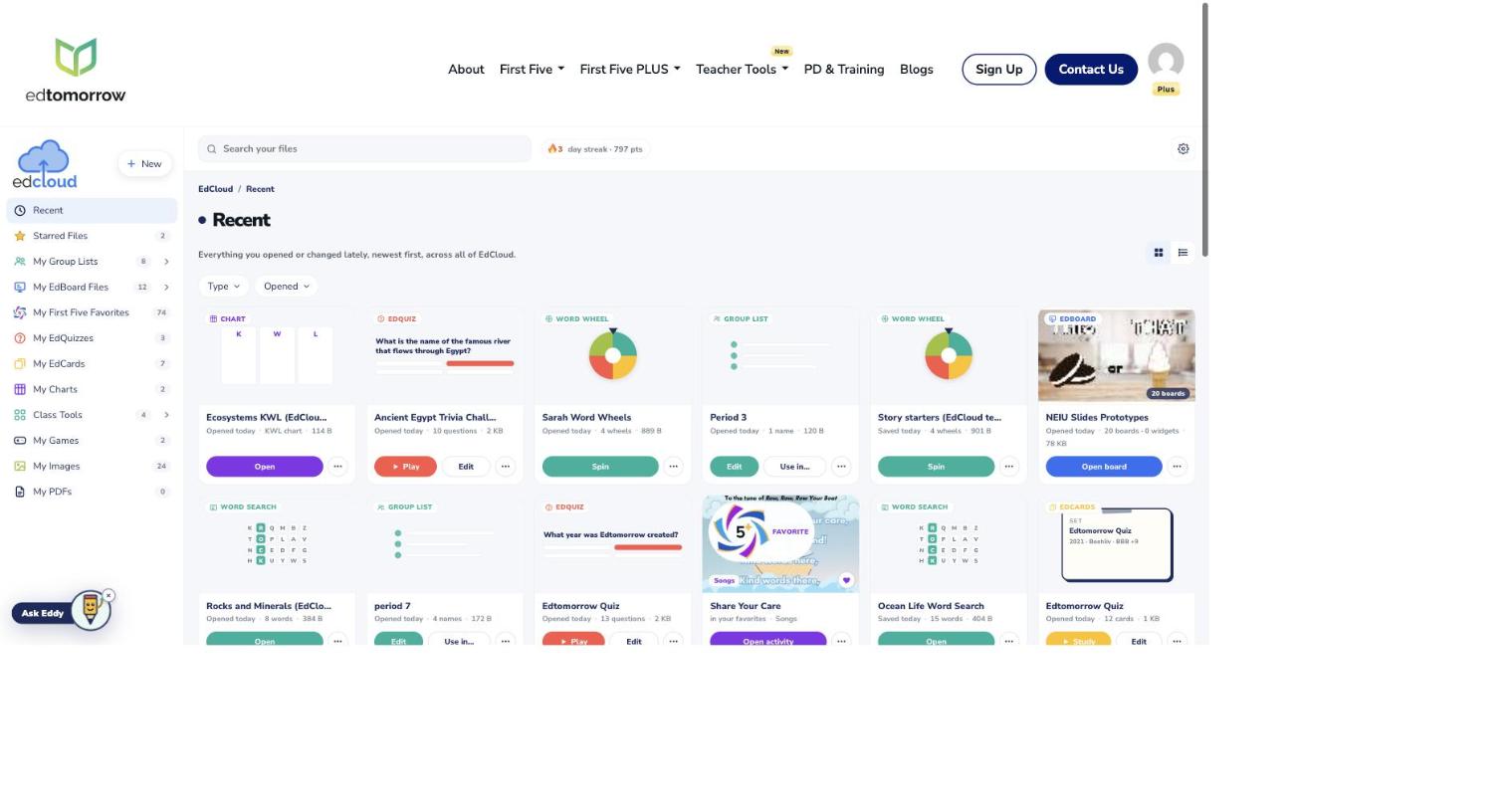
On this device, automatically
EdBoard, EdQuiz, EdCards, the Word Search Creator, Word Wheels, Bingo and the chart tools (KWL, Frayer, Venn, coordinate grid) save as you go, in the browser you are using. You do not need an account for that. Close the tab, come back tomorrow, and your board, quiz or set is still there.
Two things to know about saving this way. It lives on this one computer, so it will not be waiting for you on the classroom desktop if you built it on your laptop. And it lives in the browser, so clearing your browsing data clears it too.
In your account, with First Five Plus
With First Five Plus, everything you make is also saved to your account and waits for you on any screen you log in to. That is EdCloud, at edtomorrow.com/edcloud. Open it from the account menu at the top right of any page, or from the More tools switcher inside each tool.
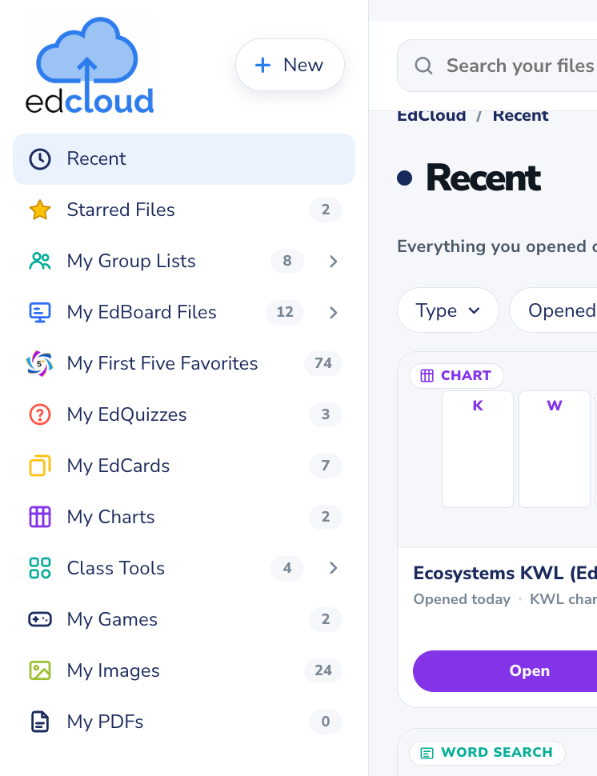
What follows you, section by section:
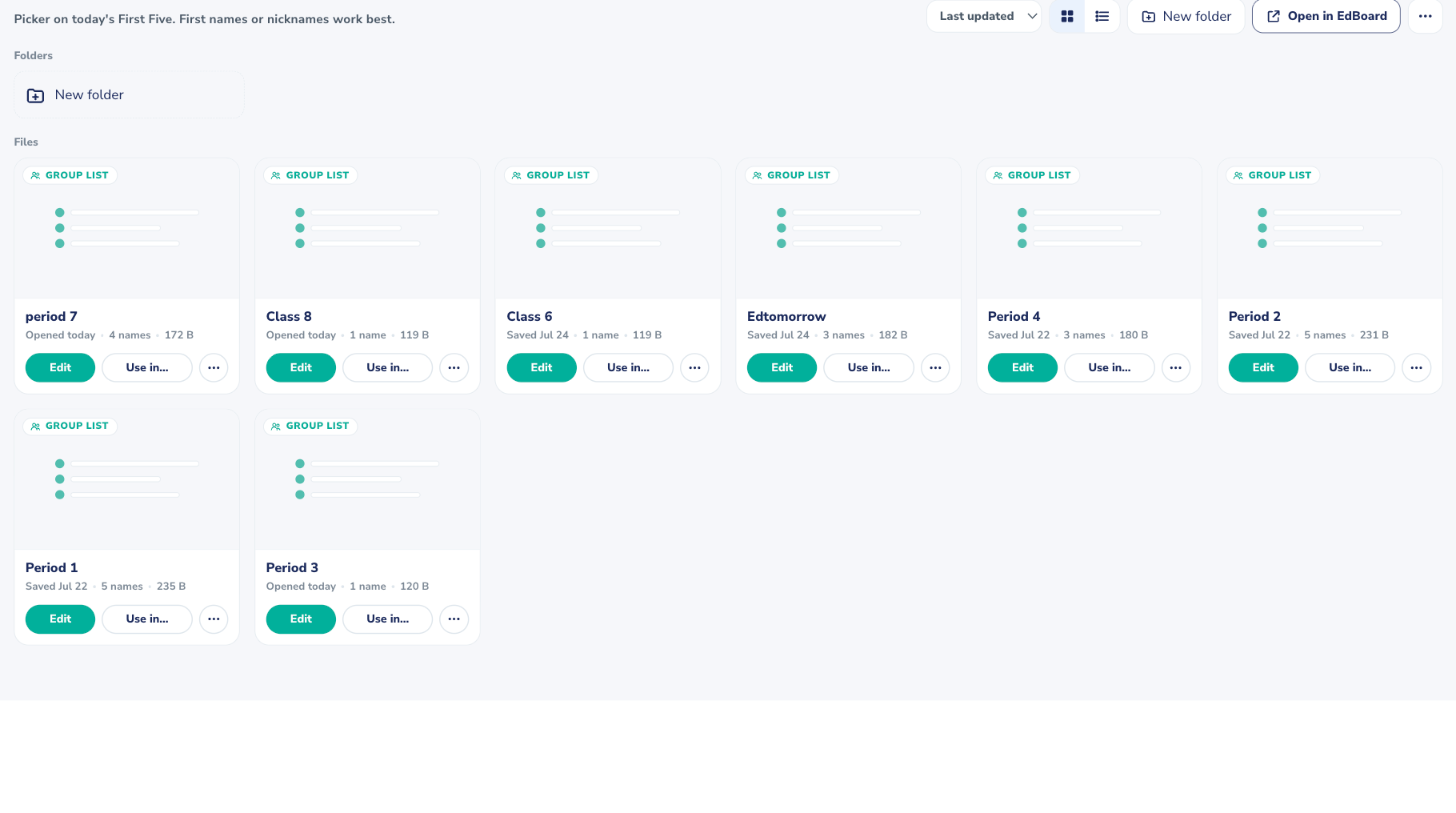
- My Group Lists, which also power the Name Picker and the randomizers on every daily First Five. Edit a list right in EdCloud, open it in EdBoard, or send it straight to the Name Picker on today’s First Five.
- My EdBoard Files: Saved Boards (the whole setup, backdrops and widgets included), Levels decks and Seating Charts. Opening a Levels deck or Seating Chart takes you to your latest board with that widget already up.
- My First Five Favorites, the activities you hearted in the database.
- My EdQuizzes and My EdCards. Play or study straight from the card, or open it to edit.
- My Charts: KWL charts, Frayer models, Venn diagrams and coordinate grids you saved, plus the chart tools we add next.
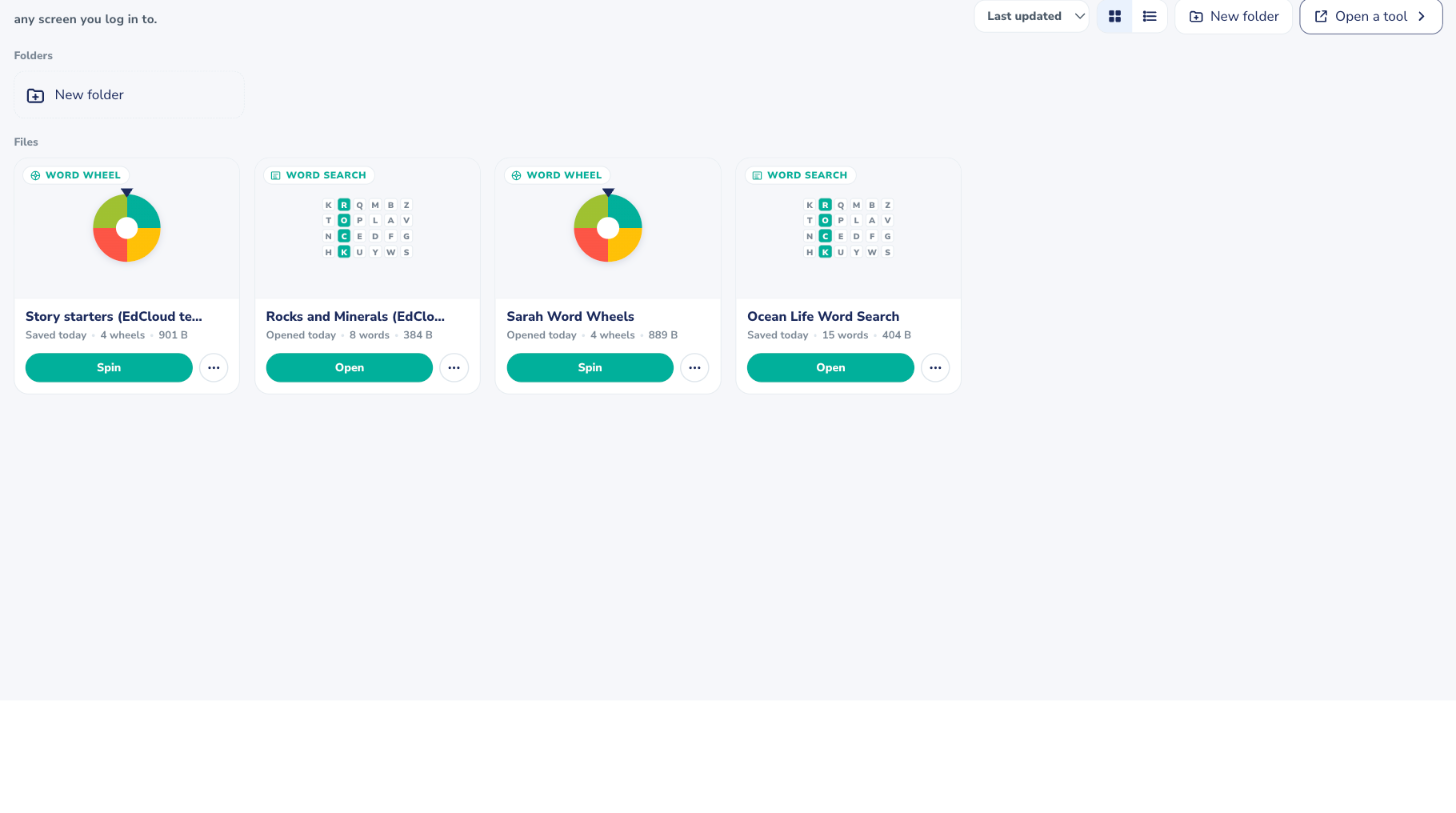
- Class Tools: word searches from the Word Search Creator, saved sets and reel lists from Word Wheels, and Bingo games once Bingo can save them.
- My Games: games you built in Game Builder, each with its own link to share with your class, plus Play, Copy link, Edit and Delete.
- My Images and My PDFs: files you uploaded for EdBoard and other tools.
Anything you imported into EdBoard from Google Slides is uploaded to your account too, so the deck opens on any device. If a deck you imported before September 2026 opens blank on another computer, open it once on the computer where you imported it and it will stick.
Saving inside each tool
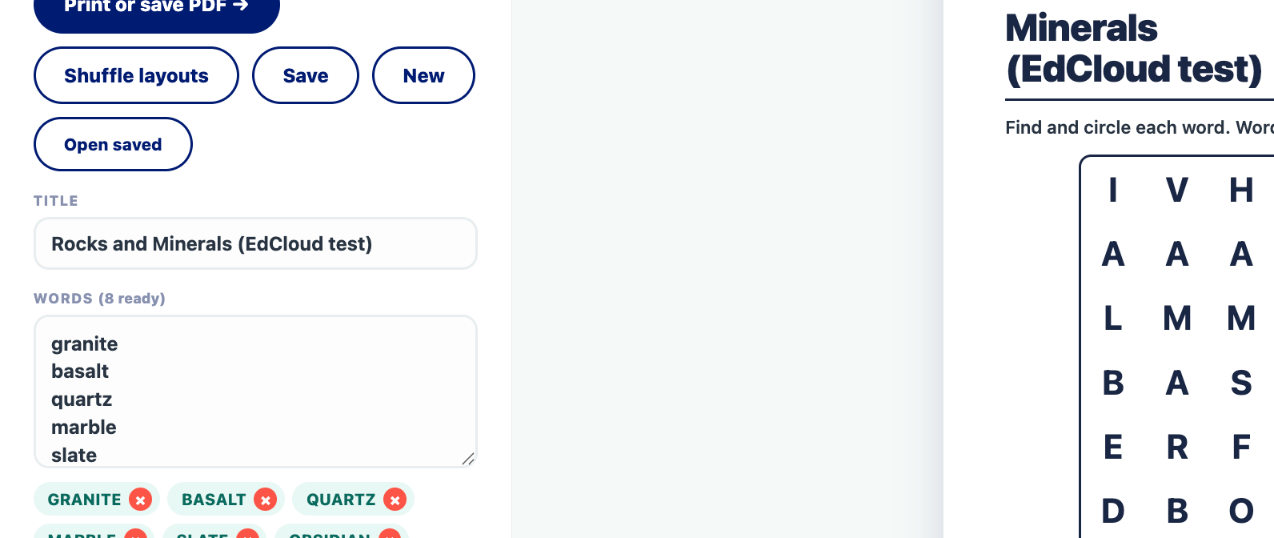
Every tool has its own Save. In the Word Search Creator, Save keeps the word search you are looking at (Save changes when a saved copy is open), New clears the page for a fresh one, and Open saved lists what you have kept. Word Wheels has Save set for a whole set of wheels and Save reel for one reel’s list. The chart tools and EdBoard use their Save buttons the same way. With First Five Plus, every one of those saves lands in EdCloud as well.
Group Lists, three ways
Each Group List card in EdCloud has Edit (change the names or the list name right there), Open in EdBoard (your latest board opens with the Group Lists widget on that list) and Use in Today’s First Five (pick Junior, Primary or Secondary, and today’s edition opens with the Name Picker loaded with that list).
Favorites live in one place
The heart on a database resource and the favorites section in EdCloud are the same list. Heart something in the database and it appears in EdCloud. Remove it in either place and it is gone from both.
When you delete something
Deleting a file in EdCloud removes it from your account and from every device you log in to. Files are deleted one at a time, and there is no button that deletes everything. The one exception is Group Lists, which has a remove-all option that asks you to type DELETE before it does anything. Deleting a Game Builder game stops its link working for anyone who has it.
Deleting something on a device where you are not logged in only removes that device’s copy.
Limits
| What | Free | First Five Plus |
|---|---|---|
| Saved Boards | On this device only | 25 per account |
| Group Lists | 2 | 30 |
| EdQuizzes | On this device only | 200 |
| EdCards sets | On this device only | 200 |
| Word Searches | On this device only | 100 |
| Word Wheels sets and reel lists | On this device only | 60 sets, 100 lists |
| Charts | On this device only | 120 |
| Game Builder games | 5 | Unlimited |
| Favorites | Plus only | 75 |
| Uploads | Plus only | 200 MB in total, images up to 8 MB each, PDFs up to 25 MB each |
| Folders in EdCloud | Plus only | 40 per section |
| Starred files | Plus only | 30 |
EdCloud shows the same numbers under Storage and limits, along with how much of your upload space is in use.
Questions
If something you saved is not where you expect it, write to info@edtomorrow.com and tell us which tool and which device. We can usually sort it out from there.